MirAI User Manual
VERSION 2.0.8Quick Start
1. Overview
MirAI is an intelligent video surveillance and AI analytics platform. It consists of a high-performance Rust-based server (AI inference, stream management, data storage) and a Qt C++ desktop client (live monitoring, incident management, configuration).
Key Features
- Real-Time Video Streaming — Low-latency RTSP via GStreamer with hardware-accelerated decoding. Supports up to 100 cameras per server.
- AI Event Detection — Pipeline-based detection for Flame (fire), Smoke, Falldown, and Intrusion with configurable ROI/RONI zones and confidence thresholds.
- Multi-Camera Grid — Flexible grid (1×1 through 10×10, up to 100 feeds) that automatically expands or shrinks based on the number of cameras placed. Supports drag-and-drop reordering and camera groups.
- Camera Groups & AI Pipelines — Organize cameras into groups. Assign AI pipelines per group.
- Incident Recording & Audit — Automatic recording with a pre-event buffer. Audit workflow (True/False), multi-format download (MP4, AVI, PNG, JPG).
- Notification System — IF-THEN rule engine with Email, Webhook, HTTP Endpoint, or SNMP delivery. Global rate limiting and quiet hours.
- Multi-Server Support — Connect to multiple servers simultaneously, each in its own tab.
- Role-Based Access — Super_Admin, Admin, and User roles with granular permissions.
- System Management — Storage policies, scheduled backup/restore, audit trail, log viewer, automatic updates.
- Localization — English, Korean, and Japanese. Configurable timezone and date format.
Main Screen Layout
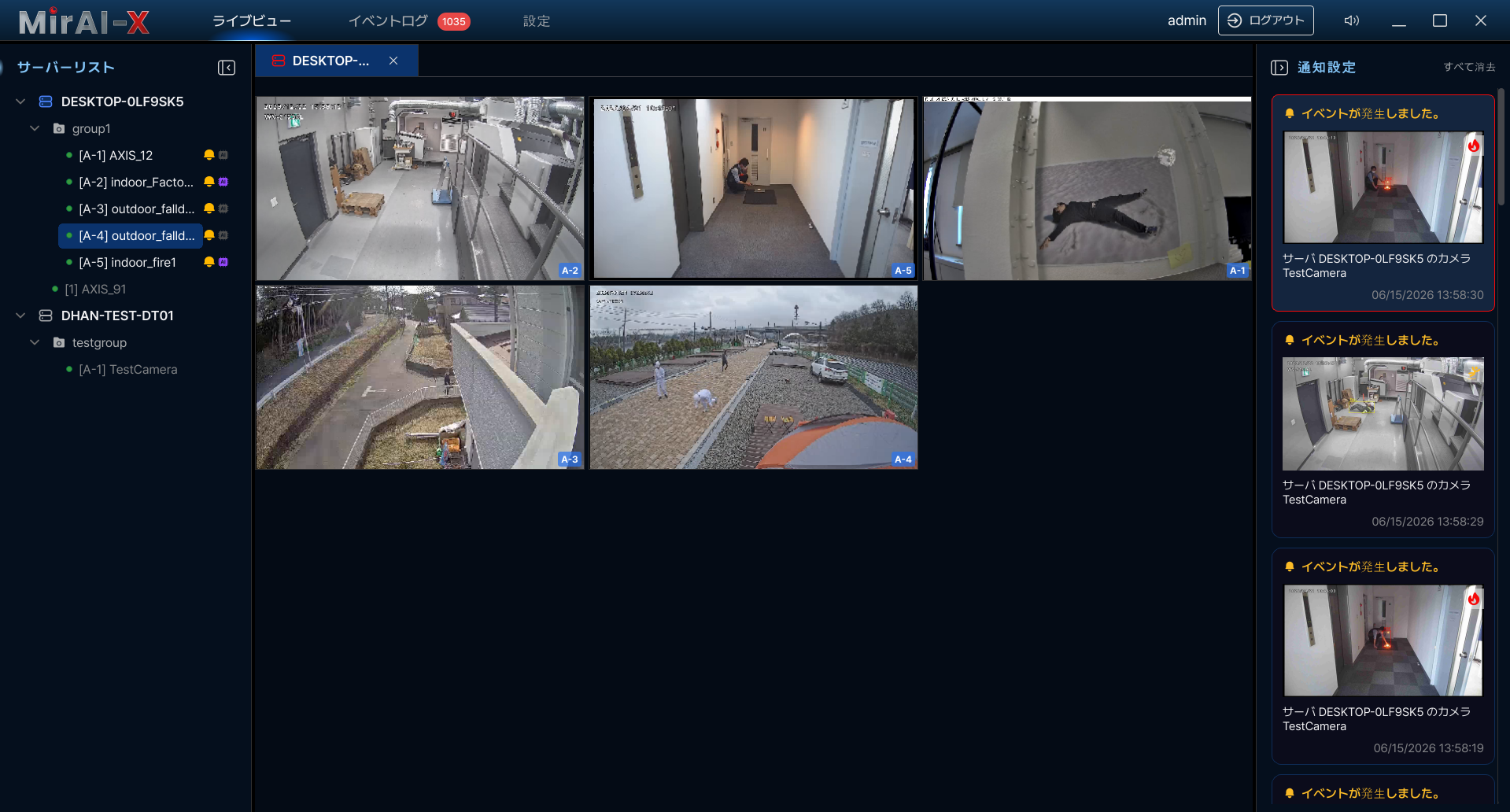
| Area | Purpose |
|---|---|
| Top Navigation | Switch between Live View, Incident Log, Settings. Mute toggle, user info, window controls. |
| Server List (left) | Tree view of servers → groups → cameras. Drag items to grid. |
| Live View Grid (center) | Camera streams in resizable grid. Supports drag-drop reordering. |
| Notification Panel (right) | Real-time AI alerts with thumbnails. Click to view incident detail. |
System Requirements
| Component | Minimum | Recommended |
|---|---|---|
| OS | Windows 10 (64-bit) | Windows 11 (64-bit) |
| CPU | Intel i5 / Ryzen 5 | Intel i7 / Ryzen 7+ |
| RAM | 8 GB | 16 GB+ |
| GPU (Server) | NVIDIA GTX 1060 | NVIDIA RTX 3060+ (AI inference) |
| Network | 100 Mbps LAN | 1 Gbps LAN |
| Disk | 500 MB (app) + 20 GB | 50+ GB SSD |
User Roles
| Role | Access Level |
|---|---|
| Super_Admin | Full access. Can create, modify, enable/disable, and delete AI pipelines. |
| Admin | Full access to everything EXCEPT pipeline modification (create/edit/delete/enable/disable). Can view pipelines. Can manage cameras, AI models, users, system settings, updates, notifications, and all other features. |
| User | Live streams and incident logs (read-only). Access to General Settings and Help only. |
Note: The only privilege difference between Super_Admin and Admin is the ability to add and modify AI pipelines. All other features (model management, updates, user registration, backup/restore) are accessible to both roles equally.
2. Getting Started
Login
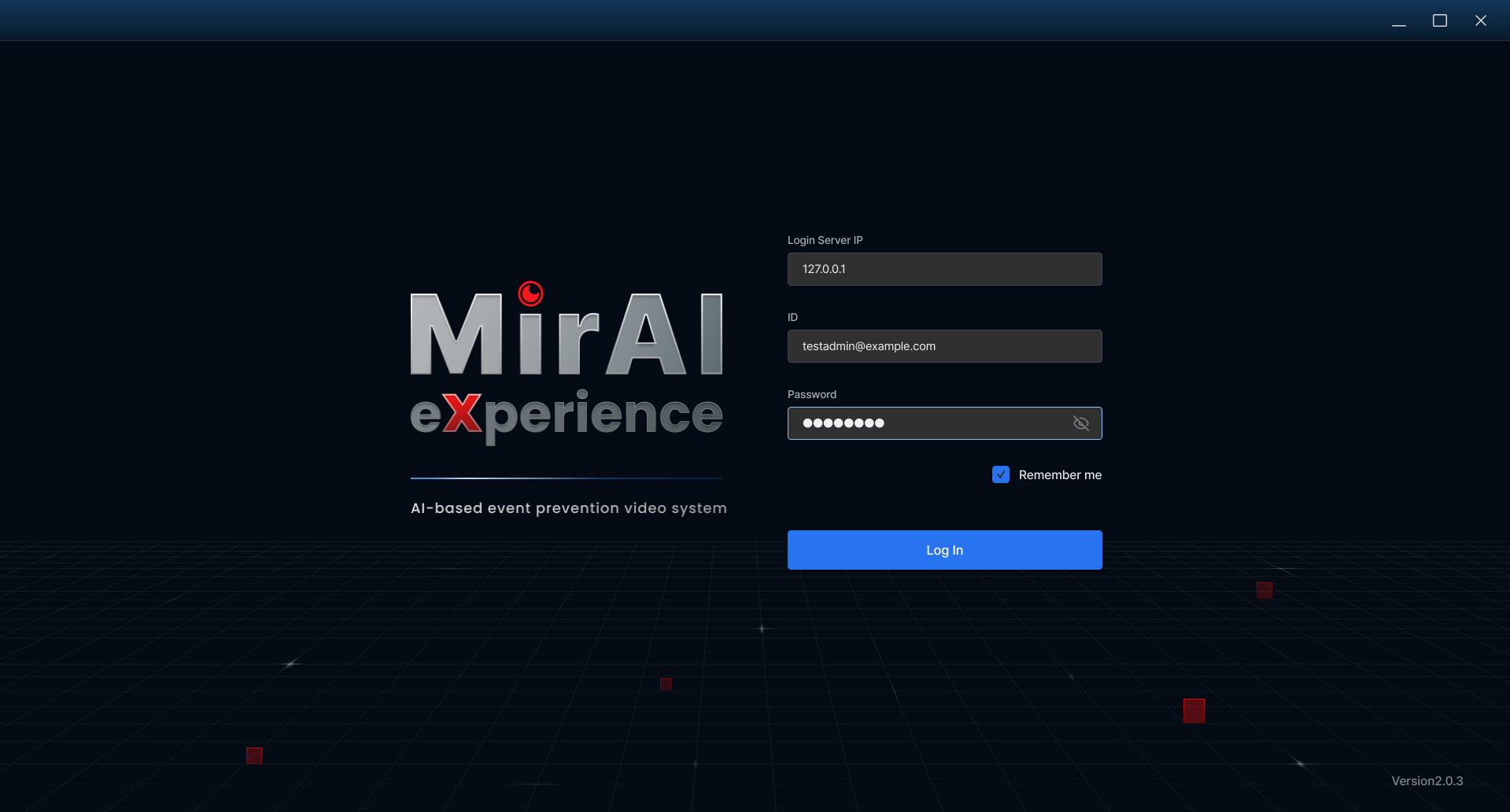
- Launch MirAI — Double-click the desktop icon.
- Enter Server IP — Type the server's IP address (e.g.,
192.168.1.100). Default port:7878(HTTPS). - Enter ID and Password — Use credentials from your system administrator.
- Check "Remember me" (optional) — Enables automatic login next time.
- Click "Log In" — If the server is starting up, a "Waiting for server..." dialog appears.
Tip: Press Enter to submit the login form without clicking the button.
3. Live View
Grid Controls
Adding cameras to the grid
- Drag a camera from Server List → drop onto empty grid cell
- Drag a server → fills grid with all cameras from that server
- Drag a camera group → fills grid with all cameras in the group
- Rearrange cameras by dragging between cells
If you re-add a camera that is already on the grid, MirAI highlights the existing tile instead of creating a duplicate.
Grid navigation
The grid size adjusts automatically to the number of cameras placed (for example, adding a camera expands a 1×2 layout to 1×3). There is no separate zoom control. While you drag, a live preview highlights the target cell and shows the resulting grid size (for example, "3 × 2").
| Action | How |
|---|---|
| Expand one camera to full view | Double-click the camera |
| Restore grid from full view | Double-click again, or press Escape |
| Show camera ID badges | Right-click grid → "Show Camera IDs" |
| Cancel drag operation | Press Escape |
Camera Hover Menu
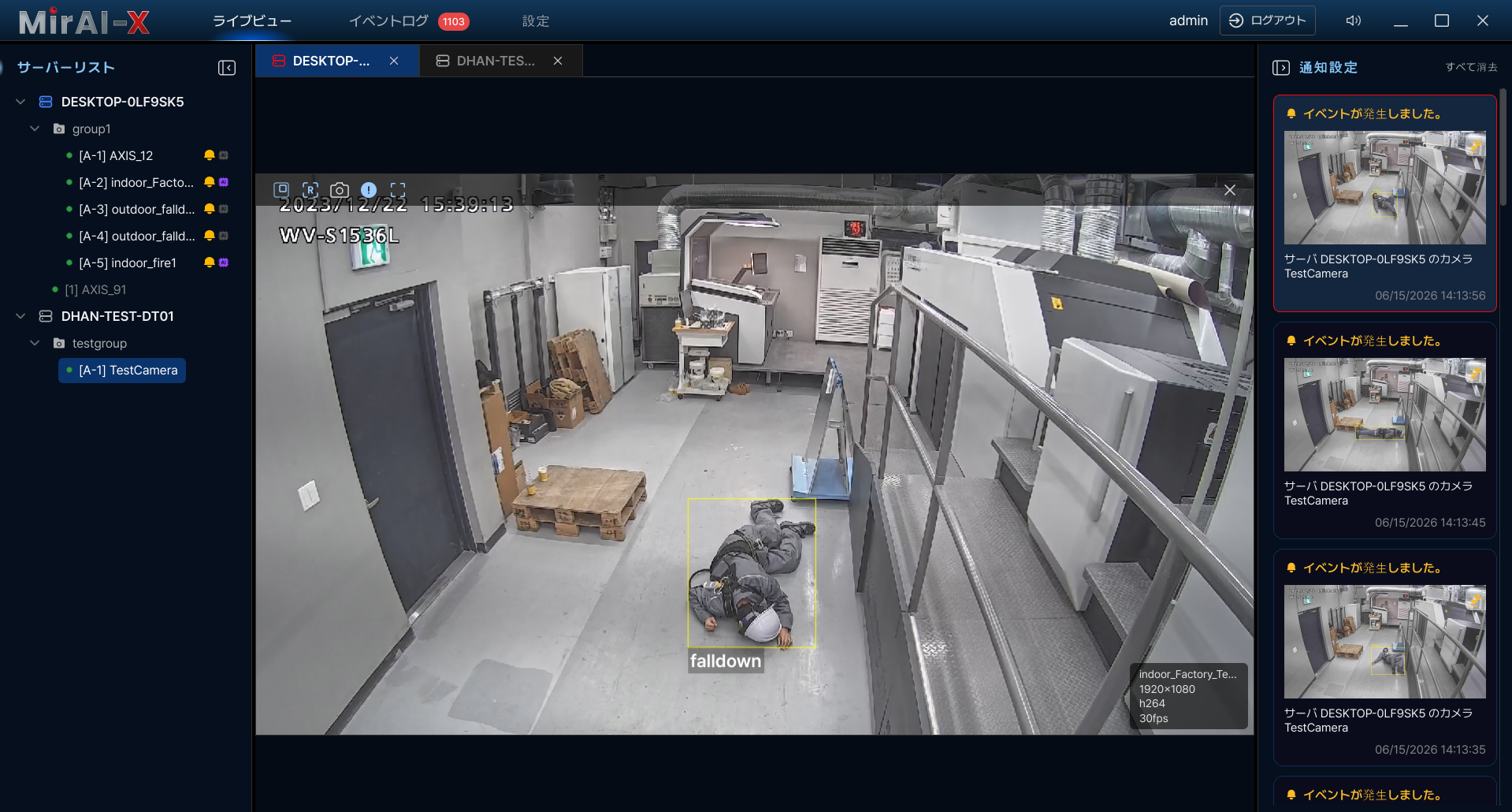
Hover over any camera tile to reveal the control bar:
| Button | Function |
|---|---|
| Show Bounding Box | Show/hide AI detection overlay (colored boxes around detected objects) |
| High/Low Resolution | Toggle between High and Low resolution stream |
| Capture | Save a screenshot of the current frame to disk |
| View Fullscreen | Expand this camera to fill the entire grid area |
| Show Info | Show/hide camera info overlay (name, IP, resolution, FPS, codec) |
| Close Camera | Remove this camera from the grid cell |
Notifications Panel (Right Sidebar)
When AI detects an event:
- A notification card appears in the right panel showing: event type icon, camera name, server, timestamp, and thumbnail
- Click a notification to jump directly to the incident detail view
- Click "Clear All" to dismiss all notifications
- Use the mute button (top-right, speaker icon) to silence alert sounds
Panel behavior: Hovering over the panel pins your current scroll position while new cards continue to arrive, so the list does not jump under your cursor. The panel keeps up to 50 cards (the oldest are pruned automatically). When the panel is collapsed, the reopen icon pulses red whenever a new alert arrives.
Alert sounds: Each event type plays a distinct sound — Fire and Smoke → Alarm, Intrusion → Siren, Falldown → Alert, others → Beep. Sounds are debounced (about 2 seconds) and can be turned off per notification rule using the rule's "play sound" toggle. Overall volume and muting are controlled in General Settings (Alert Volume / Mute All Alerts).
Rate limiting: To prevent flooding during high-activity periods, the right-panel notifications are limited to 2 per second. This limit applies only to the panel display — all events are still recorded normally in the Incident Log.
Server Management
Server List Tree Structure
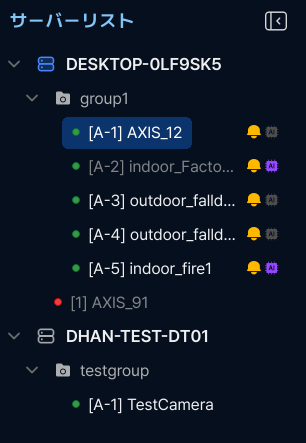
The tree uses presence colors and per-camera status icons:
- Presence color: a camera's name is shown in bright white when it is currently placed on the grid, and grey when it is not.
- AI chip — purple when AI detection is active for that camera.
- Notification bell — yellow when at least one notification rule targets that camera.
- Recording dot — red while recording, yellow when pending, orange on error.
Right-click a camera group to Expand All or Collapse All. You can also drag a camera onto another group to reassign it (a confirmation prompt appears first).
Server Context Menu (right-click a server)
- Server Info — View CPU and GPU product names
- Add Camera — Open the Add Camera dialog
- Test Camera — Open a test video window to verify the stream works
- View Logs — Open Incident Log for this server
Camera Context Menu (right-click a camera)
- Camera Settings — Edit camera name, resolution, profile
- View Logs — View incidents for this camera only
- AI Settings — Configure AI detection for this camera
- View Flow — See the AI pipeline flow diagram (read-only)
Every context menu includes a Show Camera IDs toggle to turn camera ID badges on or off in the grid.
Adding a Server
- Right-click in the Server List area → Add Server
- Enter the server's IP address, User ID, and Password
- Click Test to verify the connection
- Click Add
- The new server appears as a new tab at the top
Server Info Dialog
Right-click server → Server Info shows:
- Server Name — editable only on the server you are logged in to and only with Admin/Super_Admin privilege; otherwise it is read-only and the Save button is hidden.
- CPU and GPU product names
- Remove Server button — disconnect from this server
Working with Multiple Servers
MirAI can monitor several servers from one client. The server you sign in to is your login server; any server you add (above) is an added server and appears as its own tab at the top — switch servers by clicking their tabs.
On an added server you can monitor everything: place its cameras on the grid, watch live video, browse its Server List tree, open its Incident Log, and see its AI events — each camera shows the AI event types defined on its own server.
Added servers are view-only. Camera grouping, AI configuration, notification rules, user management, and most settings can be changed only on the server you are logged in to; to configure an added server, log into it directly. (On an added server the Server Name and similar fields are read-only and group drag-and-drop is disabled.)
To stop monitoring an added server, right-click it → Server Info → Remove Server. This only disconnects your client; it does not change the server itself.
Camera Status Indicators
The following states are shown on each camera tile in the Live View grid:
| Status | Visual | Meaning |
|---|---|---|
| Online | Normal video, green flash on recovery | Streaming normally |
| Stall | Yellow blinking border, frozen frame | Stream interrupted momentarily |
| Reconnecting | Faster yellow blink with a "Reconnecting (n/50)" attempt counter | Server re-establishing connection |
| Offline | Red flashing border, Offline icon overlay | Camera unreachable |
| Connecting | Blinking "Connecting..." text | Initial connection in progress |
| Changing | "Updating settings..." text | Configuration being applied |
| Error | Red flashing border, Error icon overlay, "Connection Failed" text | Unrecoverable stream error |
When an AI event fires on a camera, its grid tile briefly flashes a colored border in that event's color — the same color as the event's detection box (red as a fallback). This Screen Flash on Alerts behavior is on by default and can be toggled in General Settings.
4. Settings & Configuration
Access via the Settings button in the top navigation bar. The left sidebar shows setting categories.
Note: Users can access General Settings and Help only.
General Settings
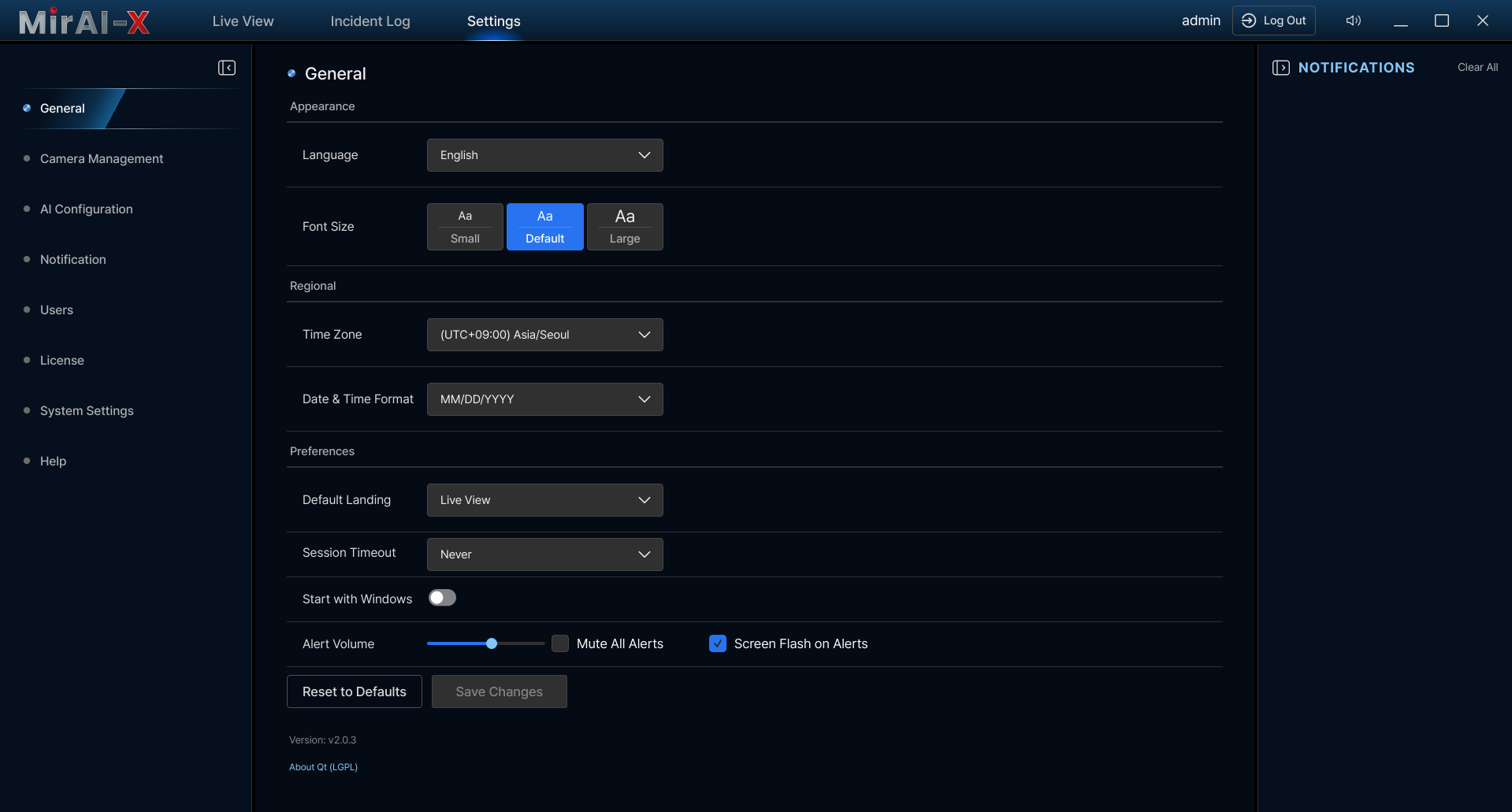
Available to all user roles. Configure appearance and preferences:
| Setting | Options |
|---|---|
| Language | English, Korean, Japanese |
| Font Size | Small, Default, Large |
| Time Zone | Select from system list |
| Date & Time Format | Multiple format options |
| Default Landing | Live View, Incident Log, or Settings |
| Session Timeout | 15 min / 30 min / 1 hour / Never |
| Start with Windows | Auto-launch on system boot |
| Screen Flash on Alerts | On an AI detection, the camera's grid tile flashes a colored border (default ON) |
| Alert Volume | Notification sound volume (0–100 slider) |
| Mute All Alerts | Silence all notification alert sounds |
Help Page
Settings → Help (available to all roles). Contains:
- User Manual — Opens this manual in your default browser
- Contact Support — MarkAny Co., Ltd. support information (website, phone, email)
- Keyboard Shortcuts — Quick reference for all keyboard shortcuts
- Third-Party Licenses — Qt (LGPL v3), GStreamer (LGPL v2.1+), OpenCV (Apache 2.0), Rust crates (MIT/Apache 2.0)
5. Incident Log
Access via the Incident Log tab in the top navigation, or right-click a server/camera → View Logs.
Filtering Incidents
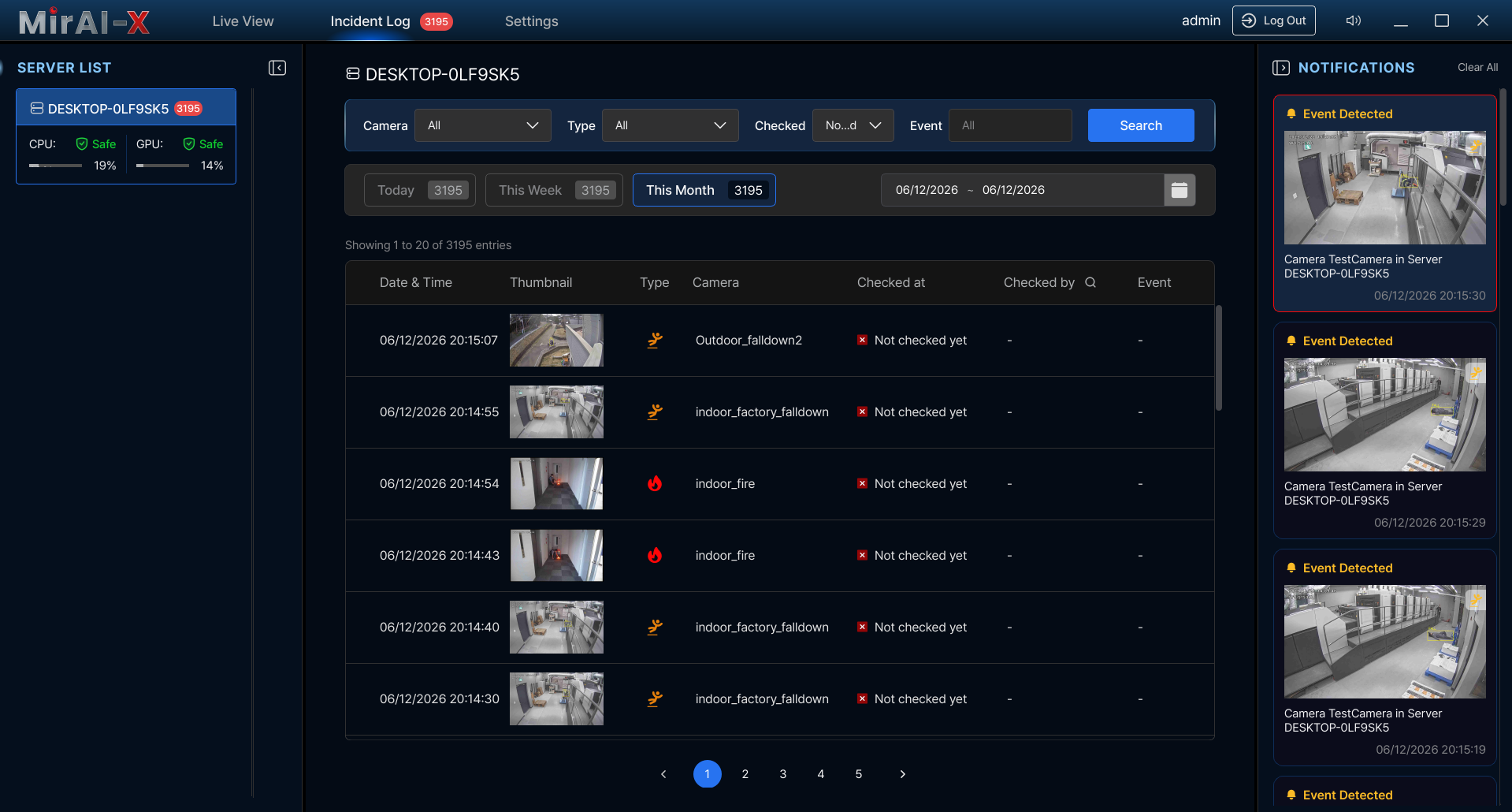
| Filter | Options |
|---|---|
| Date Range | Today, This Week, This Month, or Custom (calendar picker) |
| Camera | Specific camera or All |
| Event Type | Flame, Smoke, Falldown, Intrusion, or All (the list is populated dynamically from the configured event types) |
| Audit Status | Checked, Not Checked, All |
The table shows: Date & Time, Thumbnail, Camera, Type, Event (True/False), Checked by, Checked at. Pagination at the bottom.
Incident Detail View
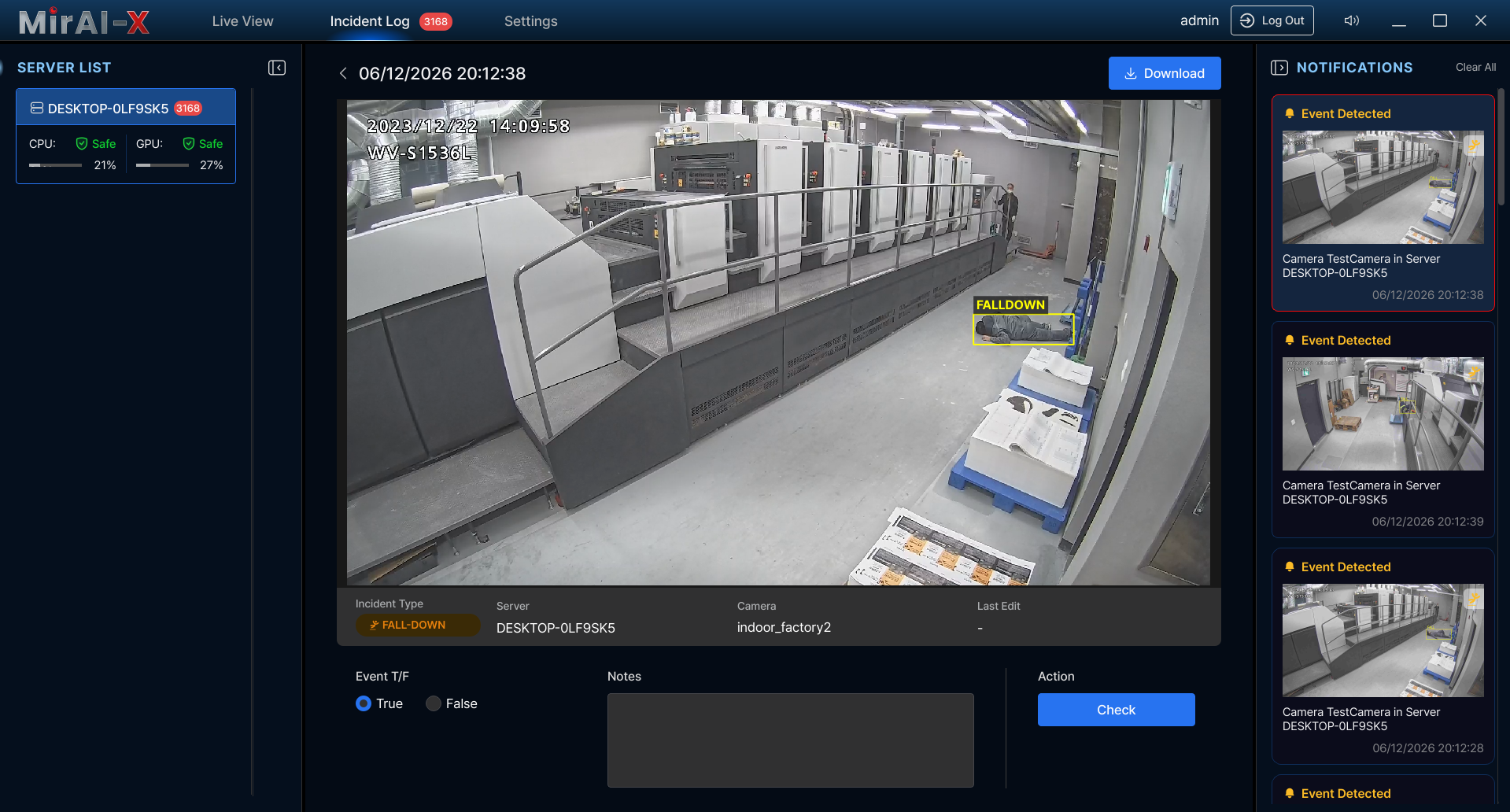
Click any row to open:
- Video playback with timeline scrubber — includes about 5 seconds of pre-event buffer. Click Play, drag to seek.
- AI bounding box overlay on the captured image showing what was detected
- Metadata: Incident Type, Server, Camera Name, Last Edit, Event T/F
Downloading Incidents
- Click the Download icon on the detail page
- Select format: Image (PNG/JPG) and/or Video (MP4/AVI)
- Optionally enable the Include Bounding Box checkbox to burn the AI detection boxes into the exported image or video
- Choose a save folder → download begins with progress indicator
6. Frequently Asked Questions
Q: How many cameras can MirAI handle?
Server: up to 100 streams (hardware dependent). Client grid: up to 100 simultaneous feeds. Performance depends on resolution, frame rate, and GPU capability.
Q: Can I access the system remotely?
Yes. Use port forwarding (server ports 7878/7575) or VPN. VPN is strongly recommended for production. TLS (HTTPS/WSS) is enabled by default.
Q: What cameras are supported?
Any camera with RTSP: Hikvision, Dahua, Axis, Hanwha, Bosch, etc. ONVIF cameras are auto-discoverable.
Q: What AI events can be detected?
Flame (fire), Smoke, Falldown (person falling), and Intrusion (unauthorized entry). Each configurable per camera with ROI/RONI zones.
Q: How do I connect to multiple servers?
Right-click Server List → Add Server → enter IP and credentials. Each server appears as a separate tab.
Q: Why does the first boot take 15-30 minutes?
The server builds TensorRT engine files optimized for your GPU. This happens once. Subsequent starts take under 30 seconds.
Q: Can I get notifications on my phone?
Yes. Set up a Webhook channel pointing to Slack, Teams, LINE, or any HTTP service. Email via SMTP is also supported.
Q: How do I back up my configuration?
Settings → System Settings → Backup & Restore. Manual or scheduled (daily/weekly/monthly). Includes all settings, cameras, users, and rules.
Q: What is ROI vs RONI?
ROI = Region of Interest (detect ONLY inside). RONI = Region of Non-Interest (EXCLUDE from detection). Use RONI for areas causing false alarms.
Q: How do I update the application?
Settings → System Settings → Updates & Reports → Check for Updates. For offline environments, use the Upload .zip option. Always update server before clients.
Q: What network ports need to be open?
7878 — REST API (HTTPS, client ↔ server). 7575 — WebSocket (WSS, real-time sync). 8554 — RTSP video streaming. 7979 — TCP file transfer. Ensure your firewall allows inbound traffic on these ports for the server machine.
Q: How do I change my password?
Go to Settings → Users → click the Edit button on your account → enter your new password → click Save. Admins can also change passwords for other users.
Q: How do I migrate to a new server?
1) Create a full backup on the old server (Settings → System Settings → Backup & Restore → Manual Backup with all categories). 2) Install MirAI on the new server. 3) Log in to the new server. 4) Go to Backup & Restore → Restore → upload or select the backup file. 5) Verify that cameras reconnect and AI pipelines are active.
7. Troubleshooting
Connection Issues
Disconnect & Reconnect Behavior
When the server connection is lost:
- A "Disconnected" overlay appears on the main screen
- Camera streams freeze on the last received frame
- The client automatically attempts to reconnect every few seconds
- Once reconnected, streams resume and the overlay disappears
- Notifications received during disconnection are not retroactively shown
Common Connection Problems
- Verify the server application is running on the target machine
- Confirm IP address and port (default:
7878) - Check firewall allows inbound connections on the server port
- Ensure both machines are on the same network or VPN is configured
- "Server disconnected" during use → check network. Client will auto-reconnect.
Camera Issues
Feed not displaying
- Test RTSP URL in VLC first to confirm it works outside MirAI
- Ensure camera is reachable from the server machine (not just client)
- Check camera status indicator (green=online, red=offline, yellow blink=stall)
- Review server logs:
logs/server.log
No cameras found during discovery
- Verify IP range is correct and cameras are powered on
- Check that cameras support ONVIF and have it enabled
- Try adding manually via RTSP URL instead
AI Detection Issues
- Confirm detection is enabled for the camera (right-click → AI Settings)
- Confirm camera is in a group with an active pipeline assigned
- Lower confidence thresholds (try 0.3-0.5 for testing)
- Check ROI/RONI — event may be outside your ROI polygon
- Verify server GPU is not overloaded (>90% → dropped frames)
- Check that the correct AI model is Active in Model Hub
- Review
logs/ai_pipeline.log
Notification Issues
- Verify channel is active (toggle ON in Channels tab)
- Click Test button on channel card to confirm delivery
- Check that a rule links the event type to the channel
- Check Global Policies — Quiet Hours may be suppressing
- Check rate limits (max per minute/hour may be exhausted)
- Email: verify SMTP settings, port, encryption, credentials
- Webhook: verify URL is reachable from server
Common Error Messages
| Message | Cause | Solution |
|---|---|---|
| "Please check the ID and Password" | Wrong credentials | Verify with admin |
| "IP Invalid" | Malformed IP | Use format: 192.168.1.100 |
| "Session expired" | Inactivity timeout | Log in again; increase timeout in General Settings |
| "AI Engine Loading" | First boot model build | Wait 15-30 min, do not restart |
| "No camera found" | ONVIF discovery failed | Check IP range, camera power, ONVIF enabled |
| "Server disconnected" | Network interruption | Check network; client auto-reconnects |
| "License expired" | License needs renewal | Contact support for new key |
| "Invalid license" | Key format error | Use XXXXX-XXXXX-XXXXX-XXXXX, no special chars |
Performance Tips
- Use smaller grid layouts to reduce CPU on the client
- Switch cameras to Low Resolution in the hover menu when monitoring many feeds
- Lower the "FPS to AI" selector to reduce server GPU usage
- Set retention policy to auto-delete old recordings and free disk space
- Close other resource-intensive applications on the client machine
When contacting support: Include your app version (Settings → System Settings → Updates), OS info, steps to reproduce, and log files from the logs/ directory.
Quick Reference: Tips & Shortcuts
| Action | How |
|---|---|
| Expand camera to full view | Double-click the camera in the grid |
| Return to grid | Double-click again or press Escape |
| Quick camera access | Right-click camera in server tree |
| Fill grid with all server cameras | Drag the server name onto the grid |
| Show/hide camera IDs | Right-click on grid → "Show Camera IDs" |
| Test camera before adding | Right-click camera → Test Camera |
| Quick filter incidents | Use Today / This Week / This Month buttons |
| Check server health | Right-click server → Server Info |
| Submit login | Press Enter on login screen |
| Exit fullscreen | Press Escape or click fullscreen button again |
| Cancel drag operation | Press Escape during drag |
8. Glossary
- ROI (Region of Interest)
- A user-defined polygon on the camera view. AI detection only triggers for events occurring inside this area.
- RONI (Region of Non-Interest)
- A user-defined polygon that excludes an area from AI detection. Events inside RONI are ignored to reduce false alarms.
- RTSP (Real-Time Streaming Protocol)
- A network protocol used to control and deliver real-time video streams from IP cameras to the MirAI server.
- ONVIF (Open Network Video Interface Forum)
- An industry standard for IP camera interoperability. Enables automatic camera discovery and configuration without vendor-specific setup.
- TensorRT
- NVIDIA's high-performance deep learning inference optimizer and runtime. MirAI uses TensorRT to accelerate AI model execution on NVIDIA GPUs.
- NSSM (Non-Sucking Service Manager)
- A Windows service manager used to run the MirAI server as a background Windows service that starts automatically on boot.
- Pipeline
- A configured chain of AI processing stages (Detector → Classifier → Tracker) that processes video frames and produces detection events.
- Bounding Box
- A rectangular overlay drawn on the video frame indicating where the AI model detected an object or event.
- Confidence Threshold
- A numeric value (0.0–1.0) that determines the minimum certainty required for an AI detection to be reported. Lower values increase sensitivity; higher values reduce false positives.
- JWT (JSON Web Token)
- A secure token format used for authentication between the MirAI client and server. Issued at login and included in all subsequent API requests.
- SMTP (Simple Mail Transfer Protocol)
- The standard protocol for sending email. Used by MirAI's notification system to deliver alert emails through a configured mail server.
- SNMP (Simple Network Management Protocol)
- A protocol for network device monitoring. MirAI can send SNMP traps to integrate with enterprise network management systems (NMS).
- Webhook
- An HTTP callback that sends real-time event data to an external URL when an AI detection occurs. Used to integrate with Slack, Teams, LINE, or custom services.